> For the complete documentation index, see [llms.txt](https://docs.metapool.app/master/llms.txt). Markdown versions of documentation pages are available by appending `.md` to page URLs; this page is available as [Markdown](https://docs.metapool.app/master/meta-pool-ecosystem/vote-governance/my-votes/delegate-your-ethereum-address-wallet.md).
# Delegate your Ethereum Address (Wallet)
In order to vote and receive payment for your votes with your Ethereum account, you must delegate the representation of your Ethereum account to a NEAR account. Here's how.
## First of all
To be able to delegate an Ethereum account, you must:
1. Have acquired mpDAO. If you don't know how, [here](https://docs.metapool.app/master/meta-pool-ecosystem/vote-governance/how-to-get-mpdao-uniswap) we explain it to you.
2. Have locked your mpDAOs to obtain Voting Power at .
3. Have at least 1000 Voting Power.
4. Create a NEAR account or connect your NEAR account. (If you don't have one yet, don't worry, we will explain how to get one very easily below).
## How to delegate a Ethereum account?
1. Go the
2. Connect the Ethereum account you want to Delegate.
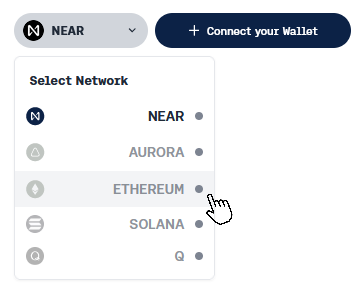
In the top right corner of the "My votes" page, you will see two fields. The first is to select the network, and the second is to connect the wallet.
1. Select the Ethereum network first.
Select the Ethereum network
2. Connect your Ethereum Wallet.
Connect your Wallet
3. Select your Ethereum wallet and connect it.
Select your wallet
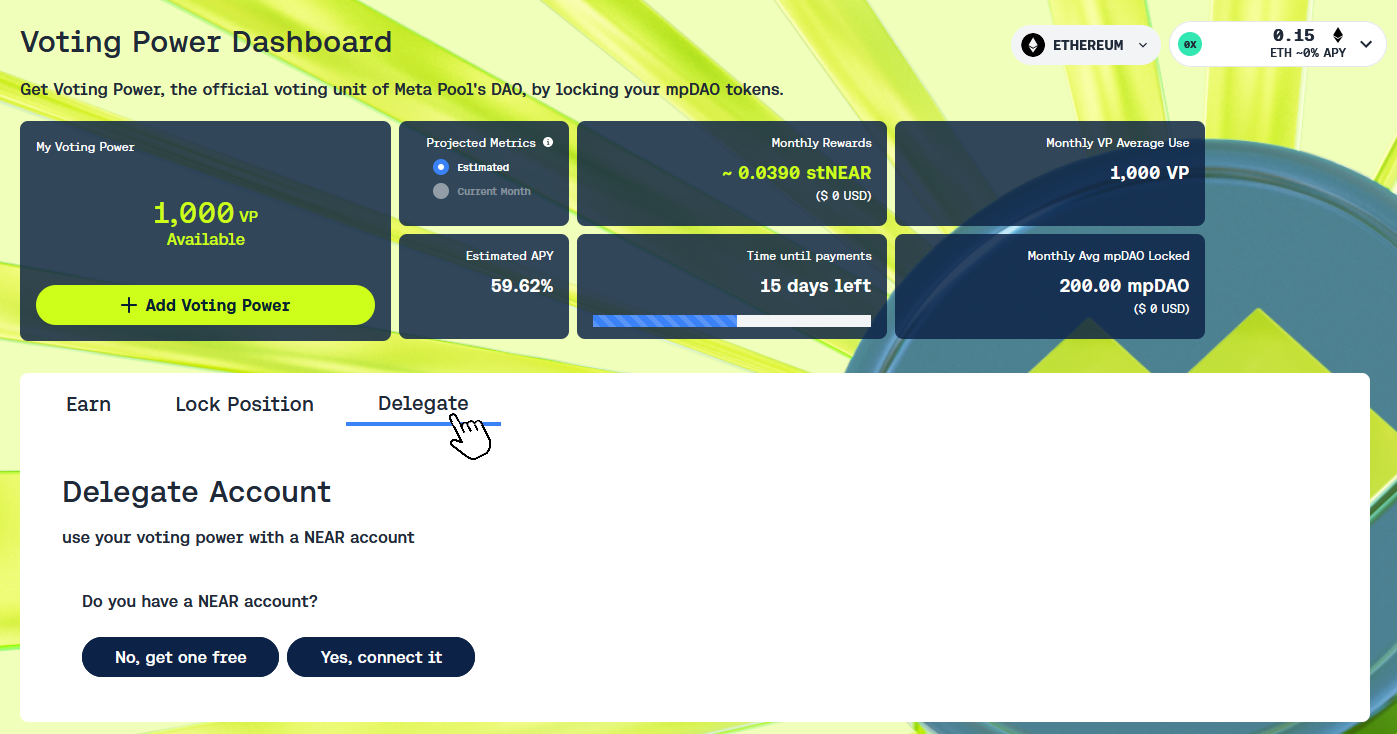
3. Your Ethereum wallet is connected and you can see the Voting Power Dashboard.
4. Go to the "Delegate" tab.
Delegate Tab
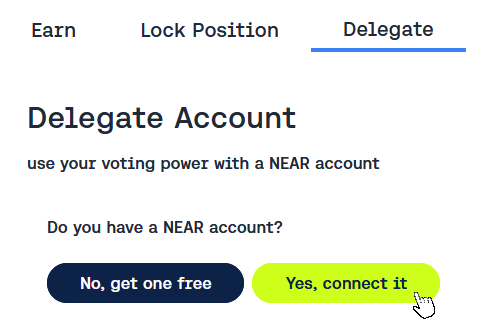
5. If you want to delegate the representation of your Ethereum Wallet to an existing NEAR wallet, choose the "***Yes, connect it***" button from the question "Do you have a NEAR account?" that appears on the screen. If, on the other hand, you do not yet have a NEAR account or want to create a new one, choose "***No, get one free***" button.
6. If you wish to delegate the representation of your Ethereum wallet to an existing NEAR wallet, click the "***Yes, connect it***" button and follow the usual instructions. Or go to: [Delegate the representation to an Existing NEAR account](#delegate-the-representation-to-an-existing-near-account).
### Getting a NEAR account for free
1. Click the "***No, get one free***" button to get a NEAR account for free.
2. In the Following pop up window, click on "***Get link***". This step is required because Meta Pool subsidizes 0.1 NEAR for the creation of a new Meta Pool wallet to delegate your Ethereum wallet.
3. Click on the "***Sign***" button in your Ethereum wallet to get the Linkdrop of 0.1 NEAR to delegate.
4. Click on: "***Get free NEAR account here***" button.
5. You will be directed to the "MyNearWallet" page, where you can choose to have the 0.1 NEAR Linkdrop deposited into an existing NEAR account (by selecting the account and clicking the "***Claim with Existing Account***" button) or create a new NEAR account by clicking the "***Claim with New Account***" button.
6. Create a NEAR account by clicking in the "***Claim with New Account" button***.
7. Choose a name for your NEAR wallet and click the "***Reserve My Account ID***" button. And follow the instructions to create your new NEAR account.
8. Congratulation Your NEAR drop has been claimed and your account created.
9. Go back to the Meta Pool page or click here . An select the Delegate tab again.
### Delegate the representation to an Existing NEAR account.
1. On the Delegate tab in , click on "***Yes, connect it***" button, to delegate the representation to an existing NEAR account.
2. Connect your NEAR wallet.
3. Click on the "***Delegate to YOUR NEAR WALLET***" button.
4. Delegate your Ethereum account to your new NEAR account. Click on the "***Sign***" button.
5. Approve the transaction in your NEAR wallet.
6. Congratulation you have delegated the representation of your Ethereum account to your NEAR account.